Your Kindle preview shows blank lines where the indents should be, and a chapter title stranded halfway down the screen. Kindle ebook formatting problems almost always come from one habit: building the file to print conventions and then handing it to a system that reflows text to fit any screen and any font size. The fix is in the source file, in paragraph styles and the format you upload, not in the preview.
Why Do Kindle Ebook Formatting Problems Happen?
Kindle ebooks reflow, so the device decides where each page ends. Amazon's Kindle Direct Publishing (KDP) says in its eBook Manuscript Formatting Guide that ebooks can be viewed at different font sizes, so page numbers and page count do not apply, and that ebooks have no headers or footers.
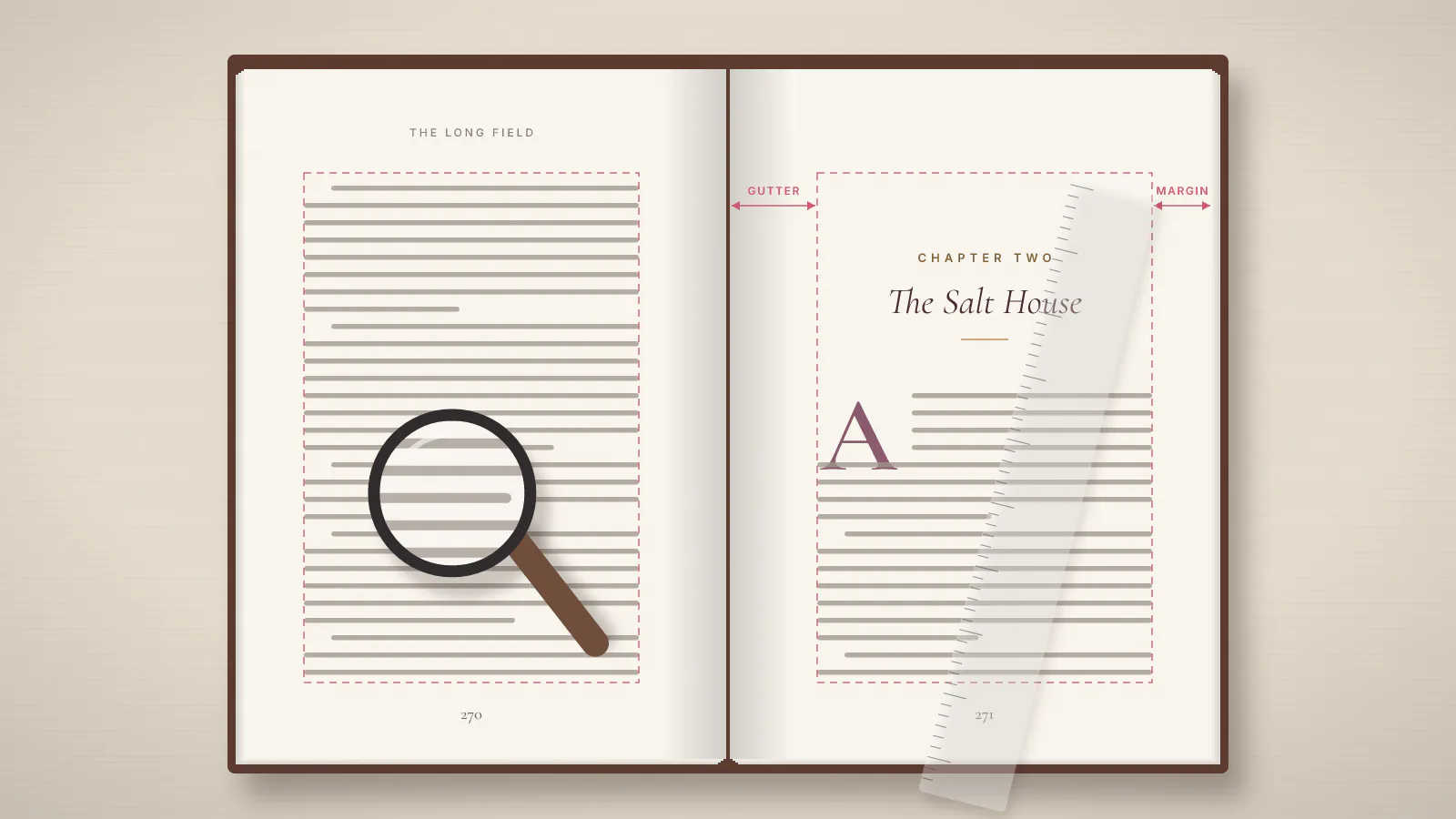
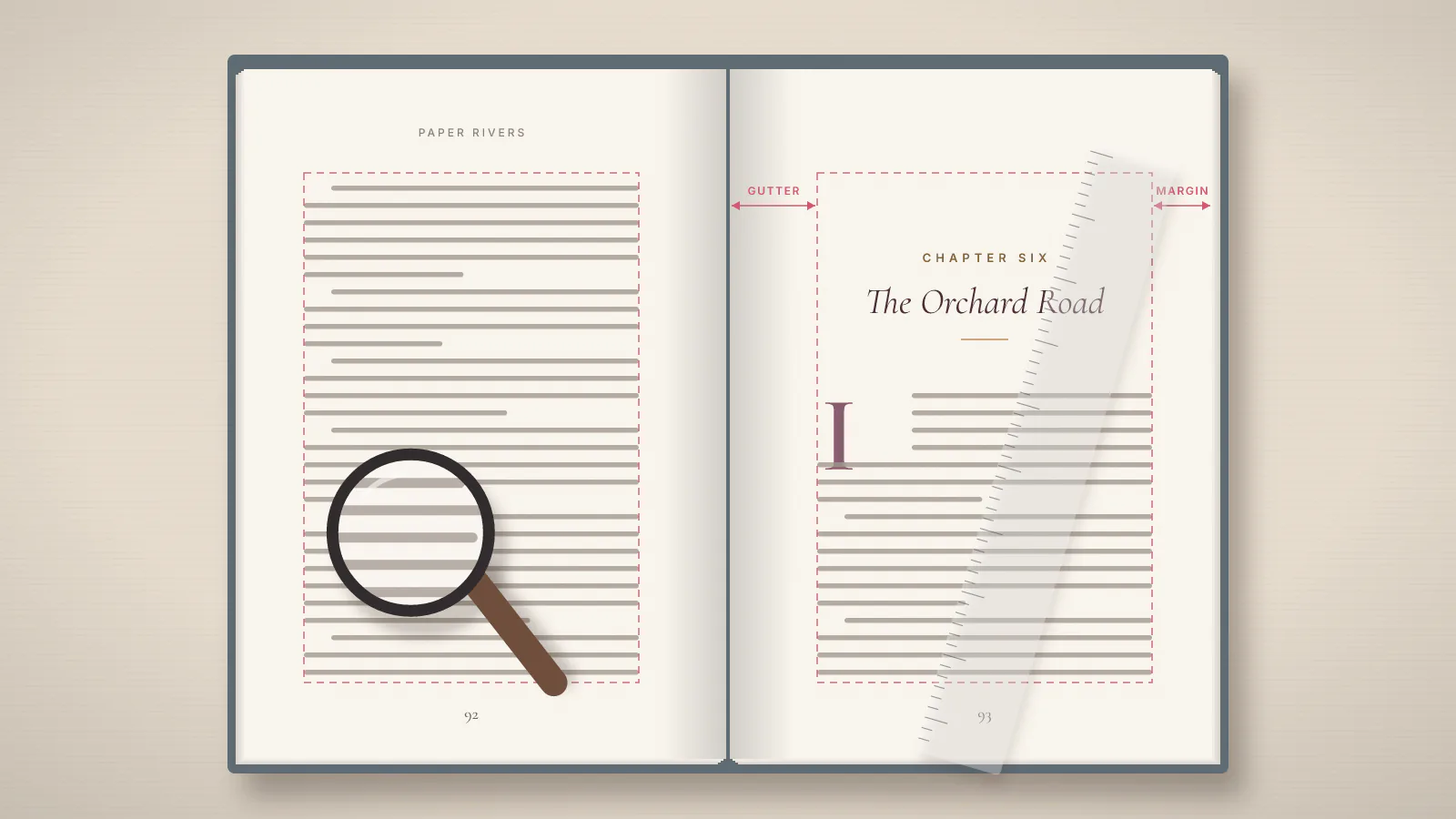
Reflowable means the reader controls the layout. Font size and screen width change on the device, so nothing in the file can hold a page in place. A print interior does the opposite. It fixes every element to a page of known size, built around the margins and the trim size you chose for the paperback.
KDP is blunt about what that means for authors who publish print first. Its eBook Manuscript Formatting Guide says that if you have already published your book as a paperback, you will need to reformat your manuscript using the ebook format guidelines to prevent formatting errors. As of November 2026 that is still the instruction, and the verb matters: reformat, not tidy up.
So the useful question is not what is wrong with the ebook file. The question is which parts still assume a printed page, and in most manuscripts that comes down to three or four habits.
Which Print Habits Break a Reflowable Ebook?
Print habits that assume a fixed page are the ones that break a reflowable ebook: tab indents, hard returns at the end of every line, page numbers, headers, footers, text boxes, and a cover image left inside the manuscript file.
Most ebook formatting mistakes on this list are production habits rather than writing errors, which is why proofreading does not catch them. The table maps each habit to what KDP's guide says about it.
| Print habit | What KDP says | What to do instead |
|---|---|---|
| Tab key indents | Tab spacing does not convert to Kindle | Set the first line indent in the Normal style |
| Hard returns at the end of every line | Hard returns can change the design of your book in unintended ways | Press Enter only to start a new paragraph or add space between paragraphs |
| Page numbers in ebooks, with headers and footers | Page numbers and page count do not apply, and ebooks have no headers or footers | Delete all three from the file |
| Text boxes and shapes for diagrams | KDP does not recommend them for diagrams | Insert the visual as an image instead |
| Drop caps (large opening capitals) added in Word | Supported, but may not appear the way you want | Add them in Kindle Create |
| Cover image inside the manuscript | KDP adds the cover image you provide during title setup | Keep the cover out of the manuscript file |
| Track Changes left on | Make sure Track Changes is off before you upload | Switch it off in the Tracking section of the Review tab |
A hard return is any point where you pressed the Enter key. KDP's guide is specific about where they belong: use a hard return to start a new paragraph or to create extra space between paragraphs, not at the end of every line. Lines broken by hand keep those breaks wherever the text lands, so a paragraph that looked tidy in Word can arrive on a phone as a column of stubs.
Track Changes earns its own row because the file looks correct to you while tracking is on. KDP's pre-upload checks include confirming it is off, which you do in the Tracking section of the Review tab.
What Paragraph and Chapter Settings Does a Kindle Ebook Need?
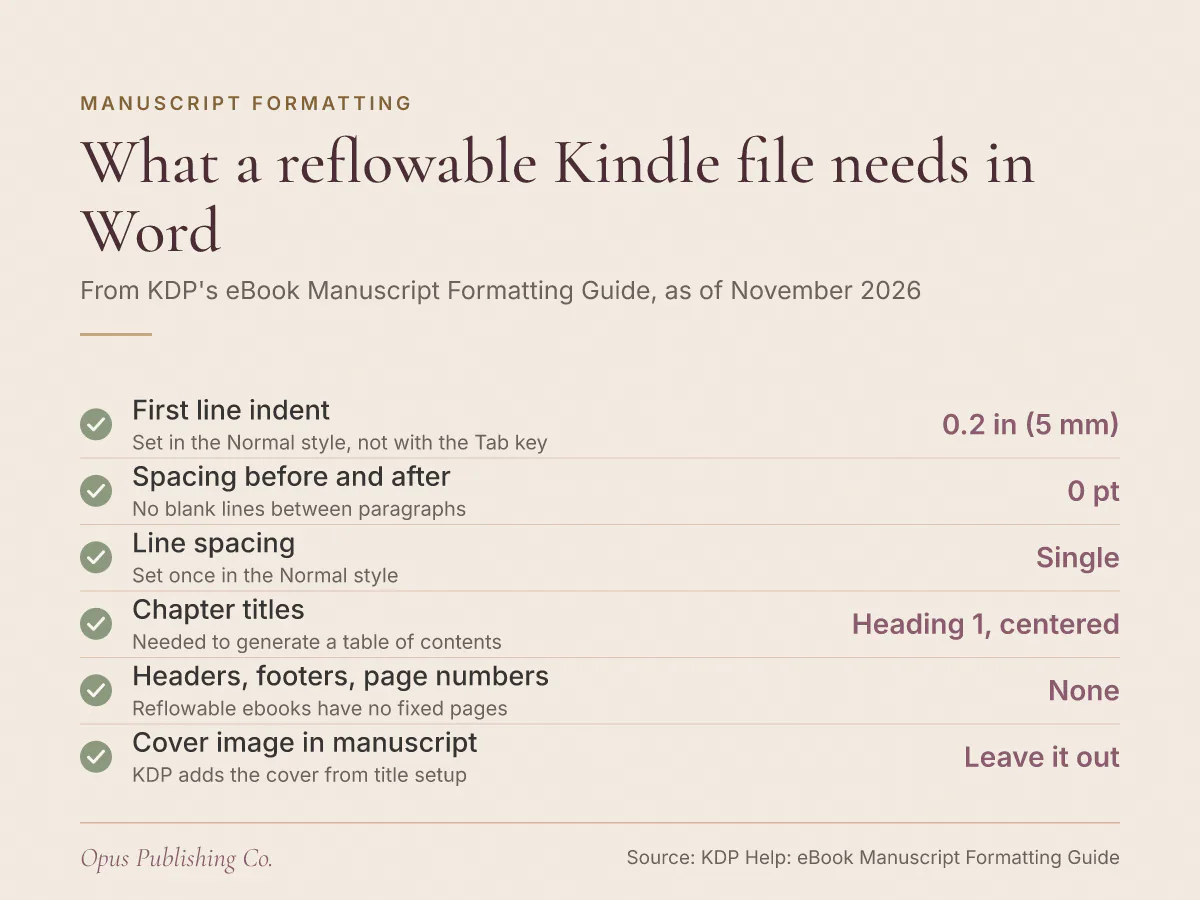
Kindle ebooks need paragraph formatting that lives in a style, not in keystrokes. KDP's formatting guide gives the values: a first line indent of 0.2 inches (5 mm), spacing before and after set to 0 pt, and single line spacing, applied by modifying Word's Normal style.
KDP's instructions are written for Microsoft Word 2016, and the steps are similar in other versions. Modify the Normal style once and every body paragraph follows: right-click Normal on the Home tab, choose Modify, open the Format list at the bottom of the dialog box, and choose Paragraph.
| Setting | Value for a reflowable ebook | Where to set it |
|---|---|---|
| First line indent | 0.2 inches (5 mm) | Normal style, Indentation, Special |
| Spacing before and after | 0 pt | Normal style, Spacing |
| Line spacing | Single | Normal style, Spacing |
| Chapter titles | Heading 1, centered | Home tab, Styles |
| Chapter breaks | Page break | Insert tab, Page Break |
| Headers, footers, page numbers | None | Delete from the file |
Two of those rows do more work than they look. Heading 1 on chapter titles is what lets you generate a table of contents later, so a chapter title formatted by hand is a table of contents you cannot build. The page break is structural too: put the cursor where the page should end and use Page Break on the Insert tab, rather than pressing Enter until the text moves.
Why Did My First Line Indents Disappear on Kindle?
Tab characters do not survive conversion. KDP's guide states that tab spacing does not convert to Kindle, so an indent typed with the Tab key arrives as no indent at all. Turn on formatting marks in Word, find every tab, delete it, and let the Normal style supply the 0.2 inch (5 mm) indent for every paragraph instead.
Should You Upload Word, EPUB or a Kindle Create File to KDP?
KDP accepts all three, so the real question is who does the typesetting. Word DOC and DOCX files convert well for most books, Kindle Create's KPF file is the one KDP calls a go-to method for avoiding formatting issues, and EPUB works when it meets the Kindle Publishing Guidelines.
KDP's supported ebook manuscript formats page lists the file formats it takes and what each one suits:
- DOC and DOCX, from Microsoft Word. KDP says most of these files convert well, that files with complex formatting may not convert as well, and that you should use Kindle Previewer to check whether the ebook converted successfully. If Word is the only tool you used, upload the DOC or DOCX file itself.
- KPF, from Kindle Create. KPF stands for Kindle Package Format, the file Kindle Create produces. KDP says a KPF file lets your ebook format and fit all Kindle devices. Kindle Create handles the typesetting for tablets, phones and e-readers, offers themes and styles, creates a table of contents page and a Kindle Interactive table of contents inside the file, and places images.
- EPUB, the open ebook file standard. KDP supports EPUB files that meet the specifications in the Kindle Publishing Guidelines, and recommends validating the file with Kindle Previewer before you upload the book.
- MOBI, the older Kindle file format. Effective March 2025, KDP no longer accepts MOBI files for fixed-layout ebooks, meaning ebooks whose page design stays put instead of reflowing.
- Everything else. KDP's accepted formats also include HTML as ZIP, HTM or HTML, Rich Text Format (RTF), and Adobe PDF, with PDF supported in nine languages only: English, French, German, Italian, Portuguese, Spanish, Catalan, Galician and Basque.
In practice that means three cases:
- Straight prose with clean, consistent styles: upload the DOCX and check it in Kindle Previewer.
- You want Amazon's typesetting, a theme and a generated table of contents: lay the book out in Kindle Create and upload the KPF file.
- A designer or a layout tool is producing your interior: supply an EPUB that meets the Kindle Publishing Guidelines, validated in Kindle Previewer first.
How Do You Preview a Kindle Ebook Before Publishing?
Kindle Previewer is the tool for that, and KDP's formatting guide describes it as a free desktop application that shows how your ebook will look on tablets, Kindle e-readers and phones. The Online Previewer gives you one final check at upload.
Previewing is not optional for a Word upload, because the conversion to Kindle format happens after you hand the file over. KDP's advice for DOC and DOCX files is to use Kindle Previewer to confirm the ebook converted successfully. If you laid the book out in Kindle Create, the Preview button does the same job inside the app.
Work through the converted file in this order:
- Open it in Kindle Previewer and read the first three chapter openings on a tablet, an e-reader and a phone.
- Check the paragraph indents and the space between paragraphs, which is where tab and hard-return damage shows first.
- Check every image, and confirm that diagrams came through as images rather than as text boxes.
- Click the table of contents entries, the footnote links and any external links.
- Run the Online Previewer after you upload to KDP, as the last look before you publish.
Readers choose their own font size, so one screenshot proves nothing. KDP lists the three device classes separately because the same file behaves differently on each.
What Happens to Footnotes, Images and the Table of Contents?
Footnotes become endnotes. KDP's formatting guide says footnotes in your ebook must have working links so readers can click from the content to the footnote and back, and that footnotes are automatically converted to endnotes when you upload the ebook.
Links are the thread running through all three elements. External links belong in the file as real hyperlinks, inserted from the Insert tab under Links, and KDP asks that they enhance the reader experience and the content of your ebook.
For the table of contents, KDP points to two routes. Build one in Word, or let Kindle Create produce both a table of contents page and a Kindle Interactive table of contents, an interactive contents list built into the ebook file. Either way, the chapter titles have to carry the Heading 1 style first.
Images need to be images. KDP does not recommend text boxes and shapes for diagrams and says to insert visuals like those as images, and it keeps a separate guide for formatting images in your book.
Front and back matter are shorter than their print equivalents. KDP says your ebook should include a title page with your book title and author name. Front matter covers the title, dedication and copyright pages, and back matter can include an About the Author page and a bibliography. The blank pages a print interior uses to open each chapter on a right-hand page have no job in an ebook, which has no right-hand page.
What Should You Fix This Week?
Open your manuscript, turn on formatting marks so you can see tabs and breaks, and work down this list. Most of it is an afternoon with the file you already have.
- Find and delete every tab character, then set the first line indent to 0.2 inches (5 mm) in the Normal style.
- Set spacing before and after to 0 pt and line spacing to Single in that same style.
- Apply Heading 1 to every chapter title, center it, and replace runs of blank lines with page breaks from the Insert tab.
- Delete page numbers, headers and footers, and take the cover image out of the manuscript file.
- Confirm Track Changes is off in the Tracking section of the Review tab, then proofread the text yourself rather than trusting the spell checker alone.
- Decide your upload format, then check the converted file in Kindle Previewer on a tablet, an e-reader and a phone before you publish.
If the paperback is going out alongside the ebook, settle whether each format needs its own ISBN, the industry identification number for a book, before you set up either listing. And if the manuscript has already been through two or three rounds of hand formatting, rebuilding it from clean styles is usually faster than repairing it, whether you do that yourself or hand it to an ebook formatting service.