You have a release date, a finished manuscript and a self published book launch plan that stops at "tell everyone it's out." The fix is to stop treating the launch as a single day. Split it into three phases across 90 days: lock the files and listing before you publish, spend launch week on your detail page and existing readers, then fix what the sales data shows.
What Should a Self Published Book Launch Plan Cover in the First 90 Days?
A self published book launch plan covers three phases: everything locked before you hit publish, the week the book goes live, and the weeks after launch when the first bump fades. Give each phase its own short list of tasks, and give the 90-day mark a decision date.
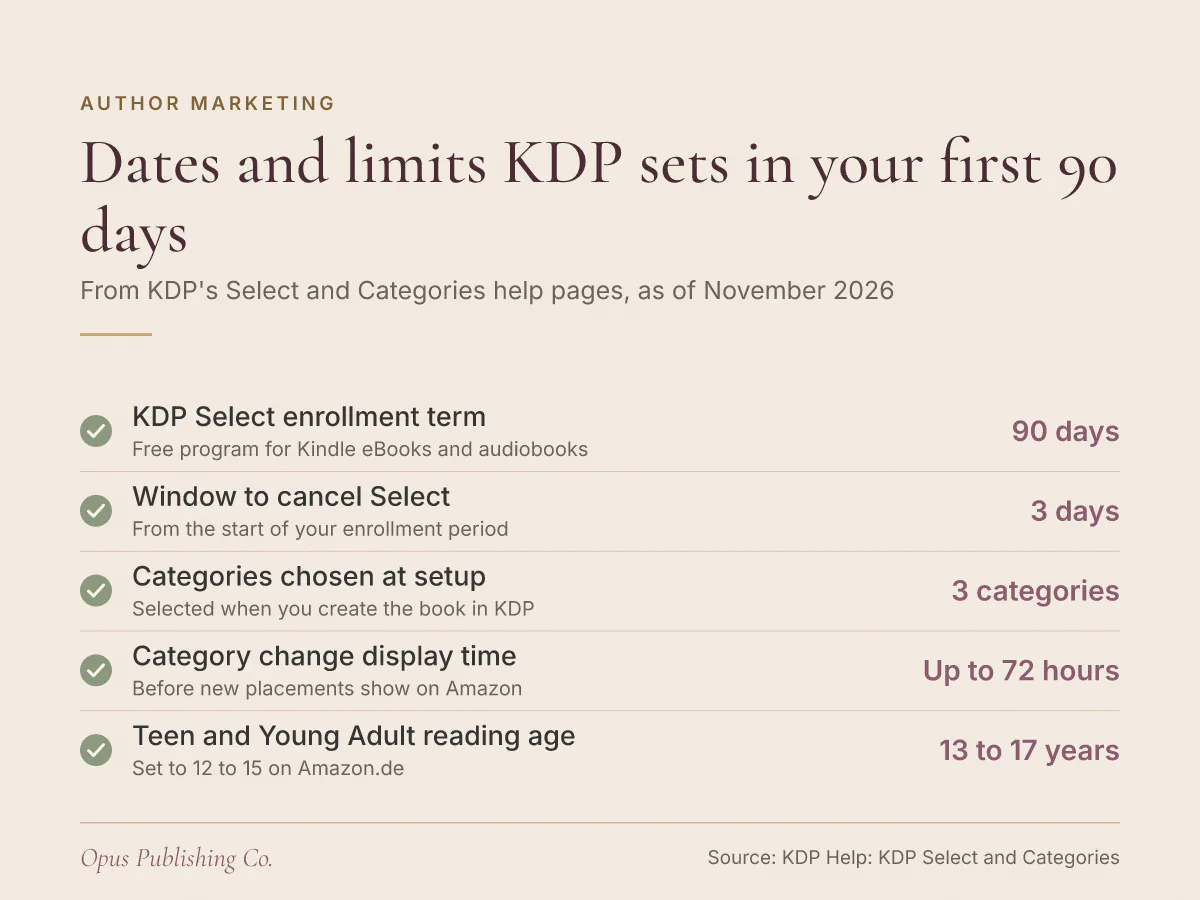
Ninety days is not an arbitrary round number. According to KDP's Select help page, KDP Select is a free 90-day program for Kindle eBooks and audiobooks, open to all authors regardless of where they live. KDP Select is Amazon's enrollment program that puts your title into Kindle+, where reading activity is paid from the KDP Select Global Fund. As of November 2026, that 90-day term is the one clock Amazon runs on your enrollment, which makes it a sensible spine for your timeline.
Build the launch around it like this:
- Phase one, before you publish: finish the files and the metadata, meaning the title details, description, keywords and categories Amazon sells from. Both get harder to change once the book is live.
- Phase two, launch week: confirm the listing is correct, tell the readers you already have, and start the review flow.
- Phase three, the rest of the term: change one listing variable at a time and watch what moves.
- Day 90: review the Select decision, the categories and the keywords, then set the next release date.
Most launch guides spend all 90 days on the run-up and leave you with nothing to do once release week ends. This plan runs the other way: light on ceremony before the launch, specific about the weeks after it.
What Has to Be Locked Before You Hit Publish?
Your cover, interior files, book description, keywords and categories need to be final before you hit publish. Changes made after release take time to show up on Amazon, and they compete for your attention during the week you can least afford the distraction.
Categories deserve particular care because KDP limits them. KDP's categories help page says you select 3 categories when you create a book in KDP. The same page allows up to 72 hours for a book to display in new categories. Amazon's help page describes categories as digital shelves, the same job the Science Fiction or Romance sections do in a bookstore, and it advises balancing popularity against relevance so your book is neither lost nor miscategorized.
Run this checklist before you press publish:
- Proof the print interior and the ebook separately. They fail in different ways, and a formatting complaint in week one is the hardest early review to recover from.
- Pick your three categories from live store browsing, not from memory. KDP's categories page points you to each marketplace's Kindle Store and Books Store listings to see where comparable books sit.
- Fill every keyword box. KDP's categories page notes that keywords help Amazon decide where to shelve your book when no category fits it exactly, which makes them your backup for subgenres that KDP does not list.
- Write the description before launch week, not during it. A page that converts is worth more than a louder announcement, and our guide to writing an Amazon book description that sells walks through the structure.
- Set the reading age if the book is for young readers. KDP's categories page states that Children's placement depends on the reading age in the Primary Audience section.
If you are still deciding between subgenres, our walkthrough of how to choose KDP categories readers actually browse covers the research step in more depth.
Should You Enroll in KDP Select at Launch?
KDP Select enrollment is the launch decision with the shortest deadline. KDP's Select help page states that you have three days from the start of your enrollment period to cancel, and that after three days you have to contact KDP. So decide before you publish, not after.
KDP Select gives a Kindle eBook two promotional tools named on KDP's Select page: Free Book Promotions, which give the ebook away free, and Kindle Countdown Deals, which discount it. KDP's Select page restricts Kindle Countdown Deals to the Amazon.com and Amazon.co.uk marketplaces, and says they are not available on Amazon.co.jp. If most of your readers are in Australia, that limit matters to your plan.
Audiobooks sit under different rules, which catches out authors launching both formats together. KDP's Select page says audiobooks are not eligible for Free Book Promotions, Kindle Countdown Deals or literary contests.
| KDP Select, as of November 2026 | Kindle eBook | Audiobook |
|---|---|---|
| Automatically included in Kindle+ | Yes | Yes |
| Free Book Promotions | Eligible | Not eligible |
| Kindle Countdown Deals | Eligible on Amazon.com and Amazon.co.uk | Not eligible |
| Window to cancel enrollment | Three days from the start of the term | Three days from the start of the term |
Two more mechanics from KDP's Select page are worth knowing before you enroll. An audiobook made with virtual voice, Amazon's computer-generated narration, follows your Kindle eBook. If the eBook is enrolled in Select, the associated virtual voice audiobook is enrolled too and included in Kindle+. An audiobook from ACX, the Amazon platform authors use to produce and distribute human-narrated audiobooks, works differently. KDP's Select page says ACX audiobooks can be unenrolled separately from the eBook, and that ACX audiobook enrollment in KDP Select adds no additional KDP exclusivity requirements to your title.
Our breakdown of what KDP Select gives you and what you give up compares the enrollment against wide distribution if you are undecided.
What Do You Actually Do in Launch Week?
Launch week has three jobs: confirm the book looks right on its Amazon detail page, tell the readers you already have, and start the review flow. Marketing that depends on strangers finding you works better after the page itself converts.
Work in this order during launch week:
- Open your own Amazon detail page, the public sales page, as a shopper would. Check the cover thumbnail, the description formatting, the look inside sample, the price and the format links.
- Confirm your categories are showing. KDP's categories page allows up to 72 hours for new category placements to display, so if the shelves look wrong on day one, wait out the window before changing anything.
- Email the people who already said yes. Everyone who read a draft, beta read, or asked to be told. A small list that knows you outperforms a large audience that does not.
- Ask for honest reviews, not good ones. Ask the readers you gave copies to for their real reaction, and never offer anything in exchange.
- Keep one metric. Pick sales, Kindle+ reading activity or reviews, and look at it once a day rather than hourly.
Skip the launch-day scramble for press coverage and bookstore events unless you already have those relationships. A debut without them is better served by a page that reads well and a handful of genuine reviews.
What Do You Do After Launch Week, When the Bump Fades?
After launch week, the plan changes from announcing to diagnosing. Spend the remaining weeks of the 90-day term testing one listing variable at a time: the categories your book sits in, the keywords that feed them, the description, and the price.
Changing KDP categories after publishing is allowed and often necessary, because the shelf you guessed at before launch is rarely the one your buyers browse. Edit them from the Details tab of your book. Two things from KDP's categories page matter here: placements can take up to 72 hours to display, and KDP reviews your changes. KDP may remove or change a category that does not match your content. A thriller parked in a Science Fiction category is the sort of mismatch that gets corrected for you.
Test deliberately instead of changing everything at once:
- Change one variable, then wait out the 72 hours before you judge the result.
- Keep a dated note of what you changed, so a sales shift has an explanation.
- Check both formats. KDP's categories page says some categories are unavailable for certain formats, so your paperback and ebook may not sit on the same shelf.
- Check your primary marketplace. Categories differ between Amazon.com, Amazon.co.uk and Amazon.com.au, so pick the best match per store rather than assuming your US choice travels.
Authors of children's and young adult books have one extra setting to verify here. KDP's categories page states that Teen and Young Adult placement needs a reading age between 13 and 17, set to between 12 and 15 on Amazon.de. The same page says a book flagged as having sexually explicit images or a sexually explicit title is ineligible for Children's categories.
What Should You Decide at the End of the 90 Days?
At the 90-day mark, decide three things: whether the Kindle eBook stays in KDP Select, whether your categories and keywords matched the readers who actually bought, and when the next book comes out. Write the decisions down so the next launch starts from evidence.
The Select decision is a judgment call about where your readers are. KDP's Select page says you can choose whether to enroll your books in KDP Select at any time, so staying is not permanent and leaving is not final. If almost all your reading activity came through Kindle+, exclusivity cost you little. If you had steady requests for other stores, or you sell directly at events, wide distribution, meaning selling through retailers beyond Amazon, is worth testing for a term.
For categories and keywords, judge the fit by what sold rather than by how the shelf sounds. If a subgenre produced the buyers, move the book toward it and feed the matching keyword boxes. If the next step is a second edition, a hardcover or a wider distribution channel, our publishing and distribution service covers the metadata and the retailer setup.
Your Next Steps This Week
Pick the phase you are actually in and do that work this week.
- If you have not published yet: finalize the three categories and the keyword boxes, then decide on KDP Select before you submit, because the cancellation window is three days from the start of the term.
- If you published this week: open your detail page as a shopper, email your existing readers, and wait out the 72 hours before judging where your categories landed.
- If you are past launch week: choose one variable to change, note the date, and leave the rest alone until the result is clear.
- If you are near day 90: review the Select enrollment, compare the categories against what actually sold, and set the next release date.